
Preflight: themes, layout & selection
Before each build, a preflight panel lets you pick which themes and components to (re)generate, and how multiple themes are laid out.
How it works
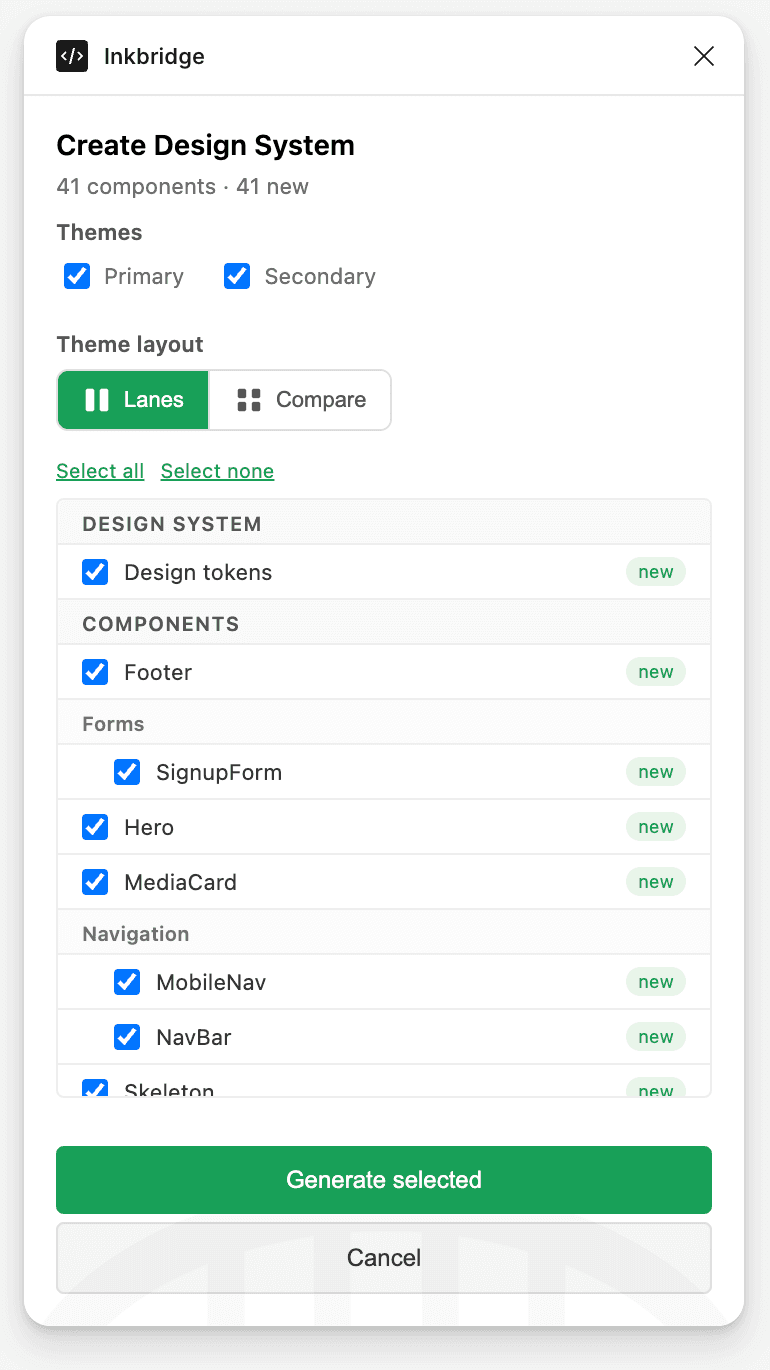
Running 'Generate Design System Page' opens a preflight panel instead of building blindly. It shows a per-component change list — each component badged 'new' or 'changed' since the last run — so you can rebuild only what moved. Above the list you choose the themes to render and the theme layout. Themes lets you tick which design-token themes to build (e.g. Primary, Secondary), and is hidden automatically when your project defines a single theme. Theme layout offers two arrangements when you have more than one theme: Lanes draws each theme as its own independent vertical column — best when you work in one theme at a time — while Compare places the themes side by side within each section, best for diffing them. The layout chooser is also hidden for a single theme (both modes render identically), and your choice is remembered per Figma document. 'Generate selected' rebuilds only the ticked components; everything else keeps its existing frames, comments, and manual positioning.
Usage
- 1
Run 'Generate Design System Page' — the preflight panel opens before anything is drawn.
- 2
Themes: tick which design-token themes to render (auto-hidden when you have a single theme).
- 3
Theme layout: choose Lanes (each theme its own vertical column) or Compare (themes side by side) — auto-hidden for a single theme; remembered per document.
- 4
Components: use Select all / Select none, or tick individual components; 'new' and 'changed' badges show what moved since the last run.
- 5
Click 'Generate selected' — only ticked components rebuild; unticked frames (and their comments or manual positioning) are preserved.